
What to check first when static assets disappear after deploy
A static site can look half alive after deploy. The HTML page opens, but the images are gone, the layout is broken, and the scripts no longer run. That kind of failure feels bigger than it often is.
In many cases, the framework did its job. The problem starts after that, when the deployed page, the asset paths, and the public host no longer agree.
This post is about the first checks to run before you go deeper. The goal is to reduce a vague “the deploy is broken” feeling into one smaller question: which asset path is failing, and why?
1. The common mistake is debugging the site before debugging the asset request
When a static site looks broken, teams often start reading config files or rebuilding locally. That is usually too early.
If the browser is asking for CSS, JS, or images from the wrong location, no amount of component debugging will help. The visible page is already telling you this is an asset request problem first.
2. The most important check is whether the page path and asset path still belong to the same deploy shape
This is the core operational question. A page can load correctly while its asset requests still point somewhere the host is not serving.
That mismatch appears in a few common ways. The site moved under a subpath but asset URLs still point to the root. The host changed but generated asset prefixes did not. Or the deploy output placed files under a nested folder while the live HTML still points to the older layout.
This is why the failure feels confusing. The site is not fully down. It is partially present. The first document opens, which makes the deploy look successful, but the artifact network under it has already split apart.
A calm way to read this is to compare four things only: the public page URL, one missing image request, one missing CSS or JS request, and the actual folder layout of the deployed output. Once those four are side by side, the mismatch is often obvious.
3. Check these first before rebuilding
- Does the page load from root or a subpath?
- Do asset URLs use the same path family as the page?
- Did the deploy folder layout change from the previous release?
- Is the host serving the same public path your build assumes?
4. One broken branch usually explains the whole symptom
Imagine the homepage loads, but all images return 404 while CSS and JS still work. That usually means the issue is narrower than the full deploy. The image branch may point to a different folder, host, or prefix than the other artifacts.
The reverse can happen too: images load from a CDN path, but CSS and JS are requested from a wrong local prefix. In that case the page looks even stranger because some assets survive and others do not.
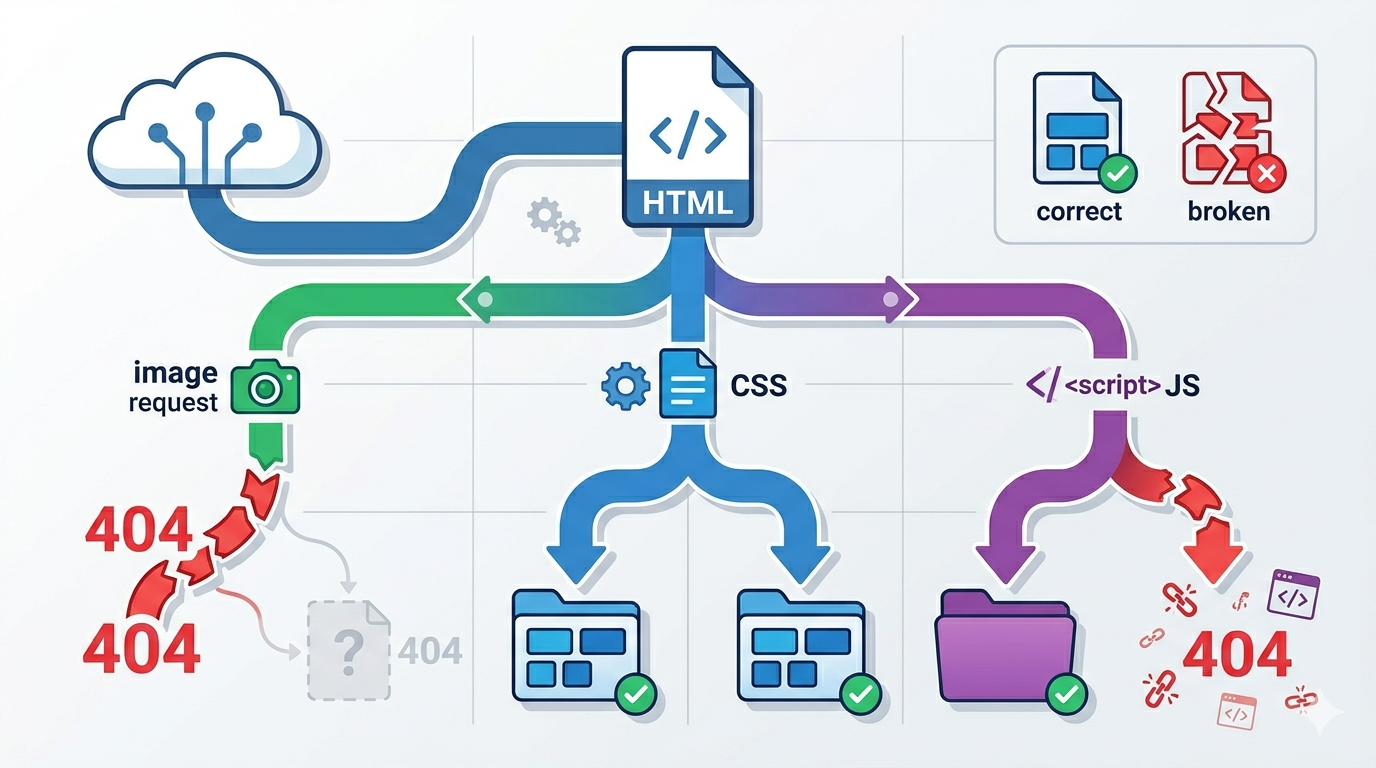
5. Use one fixed inspection order
Open the live page. Inspect one missing asset request. Compare it to the public page URL. Then compare both to the actual build output layout. Do not change code until those three views line up.
- open the broken page
- inspect one failing asset request
- compare the request path against the page URL path
- compare both against the deploy folder layout
- only then decide whether the fix is config, path, or host-related
What to do first
Write down one live page URL and one failing asset URL side by side. If they do not belong to the same deploy shape, stop debugging the app and start debugging the path.